Format a USB Flash Drive with the NTFS File System

By default, Windows users are able to format a USB flash drive with FAT or FAT32 file systems only, but not with NTFS. This confuses some of them. NTFS (New Technology File System) is the standard file system Microsoft uses for its operating systems, starting from Windows NT 3.1 through Vista. But when you try to format a USB flash drive with this standard file system, you don't have this option available.
Why do users want to set up the NTFS file system on flash drives? What advantages could it bring them?
Advantages
With NTFS, you can save more files on the flash drive (from 5 to 40% more disk space). You can create permissions to access files and/or folders on the flash drive. You get all other security file management options you have on Windows.
Disadvantages
But on the other hand, there are some disadvantages of using NTFS in this case. First of all, the speed of saving to the flash drive decreases (but the speed of reading data from the drive is the same), and you have to be more careful to ALWAYS remove the USB flash drive "safely".
How To:
So now that you're familiar with the choice, follow these steps if you opt for the NTFS system.
Attention! All data you have on the USB flash drive will be lost during formatting - back up your information first!
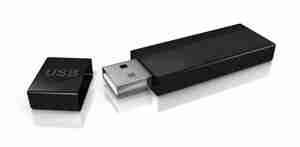 Insert the USB flash drive into the USB port.
- Open System Properties by pressing Win+Break.
- Select the Hardware tab -> Device Manager.
- Find Disk Drives, expand it.
- Find the USB flash drive you want to format, and double-click it. It opens the Properties dialog box.
- Click the Policies tab.
- By default, the 'Optimize for quick removal' option is turned on; switch it to 'Optimize for performance', and then press OK.
- Now open My Computer. Click the right mouse button on the USB flash drive and select Format... The Format dialog box now appears.
- Select NTFS in the File System field.
- Press Start, and wait while the process completes.
- Now your USB flash drive is formatted with the NTFS format.
Test Results
I did some testing with my 2GB USB flash drive. With a FAT32 file system I was able to save 2,044,834,000 bytes on it, while with NTFS I saved 2,140,656,200 bytes. I used MP3 music files for this experiment, but with plain texts or office documents the difference will increase to 40%. I did not notice any essential difference in data writing speed for such volume.
Format a USB Flash Drive with the NTFS File System
Format a USB Flash Drive with the NTFS File System : Multi-thousand tips to make your life easier.
By default, Windows users are able to format a USB flash drive with FAT or FAT32 file systems only, but not with NTFS. This confuses some of them. NTFS (New Technology File System) is the standard file system Microsoft uses for its operating systems, starting from Windows NT 3.1 through Vista. But when you try to format a USB flash drive with this standard file system, you don't have this option available.
Why do users want to set up the NTFS file system on flash drives? What advantages could it bring them?
Advantages
With NTFS, you can save more files on the flash drive (from 5 to 40% more disk space). You can create permissions to access files and/or folders on the flash drive. You get all other security file management options you have on Windows.
Disadvantages
But on the other hand, there are some disadvantages of using NTFS in this case. First of all, the speed of saving to the flash drive decreases (but the speed of reading data from the drive is the same), and you have to be more careful to ALWAYS remove the USB flash drive "safely".
How To:
So now that you're familiar with the choice, follow these steps if you opt for the NTFS system.
Attention! All data you have on the USB flash drive will be lost during formatting - back up your information first!
- Insert the USB flash drive into the USB port.
- Open System Properties by pressing Win+Break.
- Select the Hardware tab -> Device Manager.
- Find Disk Drives, expand it.
- Find the USB flash drive you want to format, and double-click it. It opens the Properties dialog box.
- Click the Policies tab.
- By default, the 'Optimize for quick removal' option is turned on; switch it to 'Optimize for performance', and then press OK.
- Now open My Computer. Click the right mouse button on the USB flash drive and select Format... The Format dialog box now appears.
- Select NTFS in the File System field.
- Press Start, and wait while the process completes.
- Now your USB flash drive is formatted with the NTFS format.
Test Results
I did some testing with my 2GB USB flash drive. With a FAT32 file system I was able to save 2,044,834,000 bytes on it, while with NTFS I saved 2,140,656,200 bytes. I used MP3 music files for this experiment, but with plain texts or office documents the difference will increase to 40%. I did not notice any essential difference in data writing speed for such volume.
Format a USB Flash Drive with the NTFS File System
By Howtodotips
Format a USB Flash Drive with the NTFS File System : Multi-thousand tips to make your life easier.