Record TiVo and DVR shows to a VCR, then transfer the video to DVD.

The capacity of a digital video recorder (DVR) may seem endless, but anyone with an addiction to “America's Next Top Model” or “Quantum Leap” knows how quickly those sacred slots get filled. Plus, you may want to tape something you want to preserve for years. For a long time, many people looked for ways to transfer recordings from a DVR to DVD. After all, it seems like it should not be too hard to record from a cable box to a DVD recorder, right? To free up space on your DVR and its hard drive, follow these steps to make a permanent copy of your favorite show. You may have heard you can do this with a VCR to a DVD. Therefore, this article will briefly touch on how to connect a VCR, DVD, and DVR. Here is how to copy a DVR recording to a DVD.
If you have a traditional DVR unit, the most straightforward method is to record from a cable box to a DVD recorder. Connect it to the DVR, as described more fully below. Keep in mind that there are other burn-friendly options for transferring your favorite shows. Some companies, including TiVo, offer DVR units with built-in DVD recorders; these combos let you record from the DVR, but they tend to be expensive, though they may be worth it for ease of use. Software for your computer makes it possible to transfer data from a DVR to a PC as well as watch and record programs in the same place; in some cases, you simply click an option to “burn to DVD” to record from the DVR.
Sponsored Link
Want a faster way to burn DVDs? Try DVDXRipper! |
However, when you want to record from a cable box to a DVD recorder, you may run into copyright issues. These copyright protections can make the process difficult (and sometimes frustratingly impossible) no matter what machine you're using. Certain channels and programs are copy-protected and will gleefully tell you so when you try to transfer the video to DVD. Premium channels such as HBO tend to apply this to their programming, as do pay-per-view channels, and the practice is growing. Sure, you can tape the show on a DVR, but not to something more permanent such as a DVD. If you're wondering how to copy these copyrighted recordings, it's pretty much impossible. “Copy protection is widespread, and increasingly common,” says John Falcone, an executive editor at CNET. “Whether or not you encounter it will vary depending on which networks, DVR hardware, and cable/satellite providers you're using. In other words, you usually have to try in order to see if it works.” So, even after you learn how to convert DVR recordings to DVD, you may still not be able to complete the process.
Falcone also points out that there's a reason it's not so easy to make this transfer: “For better or worse, the industry is moving to a more on-demand model. [Services such as cable on-demand channels, Netflix, Hulu Plus, and others] are far easier and more cost effective than the cumbersome and complicated process of recording backup DVDs.”
If you still want to give it a go, here's how to transfer DVR recordings to DVD.
What you'll need:
DVR unit such as a TiVo
DVD recorder and blank DVD+ or DVD- (check your manual)
Two sets of RCA cables or an S-video cable
A TV and lots of time to enjoy it
Here's how to start:
Make sure you have a blank, recordable DVD, and that it's the right kind. Your DVD video recorder will require either DVD+ or DVD-. Make sure you have the right kind on hand before you try to record. You should be able to find this information in the manual. Connect your DVR to the DVD recorder. Find two sets of RCA cables, the ones that generally have red, yellow, and white connectors. 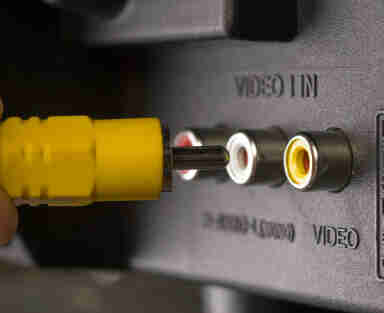 Matching the colors on the plugs to the colors on the jacks, connect the DVR output (or “line out”) to the DVD recorder input (“line in”) with one set of cables. Then use the same process to connect the DVD recorder output to the TV input with the other. Depending on the recorder and other equipment you have, you may need an S-video cable to make one or both of these connections.
Change your input settings. If all goes well, you should now be able to watch your desired program through the DVD player on the TV. When learning how to make this transfer, you may need to change the input settings on your DVD recorder and your TV. The settings should match the line that the cables are plugged into, for instance, L1 or Video1. You should be able to use your DVD and TV remotes to adjust the settings as necessary. (This should feel familiar from the more common process of switching your TV away from regular channels to the mode required to watch a DVD.)
Test the connection. Press play on the DVR, make sure the TV and DVD recorder are turned on, and you should see and hear your show as if you were watching it directly on the TV. If not, double-check the power, the cable connections, and the input settings.
Select the recording speed. You should have three options on your DVD recorder: SP, LP, and EP. SP gives you higher quality but takes up more space; with the other options, you can fit more on your DVD but will sacrifice some quality.
Record your program. Some DVRs have a “record to VCR” option that should work for transferring it to a DVD recorder; otherwise, you can just play the program. If this is the case, however, you'll need to know how to connect a VCR, DVD, and DVR. Either way, for the first step, you will need to press “record” on your DVD recorder and be patient as the program records in real time. The good news is that this means you can pause the recording when commercials come on, creating a commercial-free archive. (More ambitious archivists use video editing software on a computer to rid the program of those pesky ads before burning it to a DVD.) With some DVR recorders, you can download the program to the DVD recorder hard drive, then burn it to a DVD at high speed later, but usually the process is not speedy.
Finalize your DVD. Before you pop the disc out of the DVD recorder and dance around waving it over your head, singing that you now know how to transfer DVR to DVD, make sure you take the step your machine requires to finish the DVD. This should be described in your manual and will ensure that you can play the DVD whenever and wherever you please.
Now you can do more than just record from a DVR. You can save your favorite shows using a DVD recorder! It may seem difficult, but these steps should help you record from a DVR to a DVD recorder. Now you can watch your TV shows whenever you want!
Transfer Data from a Digital Video Recorder (DVR) to DVD
Record TiVo and DVR shows to a VCR, then transfer the video to DVD.
The capacity of a digital video recorder (DVR) may seem endless, but anyone with an addiction to “America's Next Top Model” or “Quantum Leap” knows how quickly those sacred slots get filled. Plus, you may want to tape something you want to preserve for years. For a long time, many people looked for ways to transfer recordings from a DVR to DVD. After all, it seems like it should not be too hard to record from a cable box to a DVD recorder, right? To free up space on your DVR and its hard drive, follow these steps to make a permanent copy of your favorite show. You may have heard you can do this with a VCR to a DVD. Therefore, this article will briefly touch on how to connect a VCR, DVD, and DVR. Here is how to copy a DVR recording to a DVD.
If you have a traditional DVR unit, the most straightforward method is to record from a cable box to a DVD recorder. Connect it to the DVR, as described more fully below. Keep in mind that there are other burn-friendly options for transferring your favorite shows. Some companies, including TiVo, offer DVR units with built-in DVD recorders; these combos let you record from the DVR, but they tend to be expensive, though they may be worth it for ease of use. Software for your computer makes it possible to transfer data from a DVR to a PC as well as watch and record programs in the same place; in some cases, you simply click an option to “burn to DVD” to record from the DVR.
Sponsored Link
Want a faster way to burn DVDs? Try DVDXRipper! |
However, when you want to record from a cable box to a DVD recorder, you may run into copyright issues. These copyright protections can make the process difficult (and sometimes frustratingly impossible) no matter what machine you're using. Certain channels and programs are copy-protected and will gleefully tell you so when you try to transfer the video to DVD. Premium channels such as HBO tend to apply this to their programming, as do pay-per-view channels, and the practice is growing. Sure, you can tape the show on a DVR, but not to something more permanent such as a DVD. If you're wondering how to copy these copyrighted recordings, it's pretty much impossible. “Copy protection is widespread, and increasingly common,” says John Falcone, an executive editor at CNET. “Whether or not you encounter it will vary depending on which networks, DVR hardware, and cable/satellite providers you're using. In other words, you usually have to try in order to see if it works.” So, even after you learn how to convert DVR recordings to DVD, you may still not be able to complete the process.
Falcone also points out that there's a reason it's not so easy to make this transfer: “For better or worse, the industry is moving to a more on-demand model. [Services such as cable on-demand channels, Netflix, Hulu Plus, and others] are far easier and more cost effective than the cumbersome and complicated process of recording backup DVDs.”
If you still want to give it a go, here's how to transfer DVR recordings to DVD.
What you'll need:
DVR unit such as a TiVo
DVD recorder and blank DVD+ or DVD- (check your manual)
Two sets of RCA cables or an S-video cable
A TV and lots of time to enjoy it
Here's how to start:
Make sure you have a blank, recordable DVD, and that it's the right kind. Your DVD video recorder will require either DVD+ or DVD-. Make sure you have the right kind on hand before you try to record. You should be able to find this information in the manual. Connect your DVR to the DVD recorder. Find two sets of RCA cables, the ones that generally have red, yellow, and white connectors. Matching the colors on the plugs to the colors on the jacks, connect the DVR output (or “line out”) to the DVD recorder input (“line in”) with one set of cables. Then use the same process to connect the DVD recorder output to the TV input with the other. Depending on the recorder and other equipment you have, you may need an S-video cable to make one or both of these connections.
Change your input settings. If all goes well, you should now be able to watch your desired program through the DVD player on the TV. When learning how to make this transfer, you may need to change the input settings on your DVD recorder and your TV. The settings should match the line that the cables are plugged into, for instance, L1 or Video1. You should be able to use your DVD and TV remotes to adjust the settings as necessary. (This should feel familiar from the more common process of switching your TV away from regular channels to the mode required to watch a DVD.)
Test the connection. Press play on the DVR, make sure the TV and DVD recorder are turned on, and you should see and hear your show as if you were watching it directly on the TV. If not, double-check the power, the cable connections, and the input settings.
Select the recording speed. You should have three options on your DVD recorder: SP, LP, and EP. SP gives you higher quality but takes up more space; with the other options, you can fit more on your DVD but will sacrifice some quality.
Record your program. Some DVRs have a “record to VCR” option that should work for transferring it to a DVD recorder; otherwise, you can just play the program. If this is the case, however, you'll need to know how to connect a VCR, DVD, and DVR. Either way, for the first step, you will need to press “record” on your DVD recorder and be patient as the program records in real time. The good news is that this means you can pause the recording when commercials come on, creating a commercial-free archive. (More ambitious archivists use video editing software on a computer to rid the program of those pesky ads before burning it to a DVD.) With some DVR recorders, you can download the program to the DVD recorder hard drive, then burn it to a DVD at high speed later, but usually the process is not speedy.
Finalize your DVD. Before you pop the disc out of the DVD recorder and dance around waving it over your head, singing that you now know how to transfer DVR to DVD, make sure you take the step your machine requires to finish the DVD. This should be described in your manual and will ensure that you can play the DVD whenever and wherever you please.
Now you can do more than just record from a DVR. You can save your favorite shows using a DVD recorder! It may seem difficult, but these steps should help you record from a DVR to a DVD recorder. Now you can watch your TV shows whenever you want!
Transfer Data from a Digital Video Recorder (DVR) to DVD
By Howtodotips
Record TiVo and DVR shows to a VCR, then transfer the video to DVD.