This guide explains how to unlock a locked iPod using a PIN code, syncing with a computer, or restoring factory settings via the iPod Updater, while distinguishing lock options from the Hold Switch and Screen Lock functions.
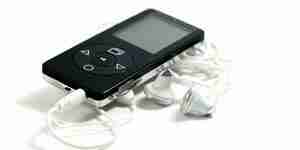
Most gadgets released today, such as cellular phones, laptops, and MP3 players, have controls or options that lock them to prevent others from accessing them without permission. The same is true for various iPod models, such as the iPod (5G) and iPod Nano.
- Unlock your iPod by entering the four-digit PIN code. Typically, a four-character PIN code is assigned by the user if they choose to use this locking function on their iPod.
- Connect your iPod to the computer. There are cases when users forget these PIN codes, given all the numbers they have to memorize each day. If this happens, all you have to do is connect your iPod to the personal computer where it was first synchronized. Afterwards, open iTunes. Then, disconnect your iPod from the computer. Your iPod should no longer be locked after you perform these steps.
- Use the iPod Updater. The iPod Updater is an application downloaded onto a personal computer. Its function is to help the user organize all the data, such as audio and video files, onto the iPod. Through this application, one can create playlists of audio or video tracks and even create folders for a more organized interface. If the first two options do not unlock your iPod, you need to use the iPod Updater to restore it to its factory settings. Bear in mind, though, that this step will unlock your iPod but erase all the files stored on it.
- Add songs or videos. If you chose option three, chances are you will need to put the data back onto your iPod again. Just choose all the songs, videos, and other files you wish to store on your iPod by accessing your iTunes on the personal computer to which your iPod is synchronized, and save these files back onto your iPod.
The locking options on the iPod are different from the Hold Switch and Screen Lock functions. The first one prevents the iPod from accidentally turning on, while the latter only avoids access to the user interface when the iPod is not connected to the computer. This means that once the iPod is attached to the computer, it will function in disk mode, and all the stored data can still be accessed and managed.
Unlock a Locked iPod
This guide explains how to unlock a locked iPod using a PIN code, syncing with a computer, or restoring factory settings via the iPod Updater, while distinguishing lock options from the Hold Switch and Screen Lock functions.
Most gadgets released today, such as cellular phones, laptops, and MP3 players, have controls or options that lock them to prevent others from accessing them without permission. The same is true for various iPod models, such as the iPod (5G) and iPod Nano.
- Unlock your iPod by entering the four-digit PIN code. Typically, a four-character PIN code is assigned by the user if they choose to use this locking function on their iPod.
- Connect your iPod to the computer. There are cases when users forget these PIN codes, given all the numbers they have to memorize each day. If this happens, all you have to do is connect your iPod to the personal computer where it was first synchronized. Afterwards, open iTunes. Then, disconnect your iPod from the computer. Your iPod should no longer be locked after you perform these steps.
- Use the iPod Updater. The iPod Updater is an application downloaded onto a personal computer. Its function is to help the user organize all the data, such as audio and video files, onto the iPod. Through this application, one can create playlists of audio or video tracks and even create folders for a more organized interface. If the first two options do not unlock your iPod, you need to use the iPod Updater to restore it to its factory settings. Bear in mind, though, that this step will unlock your iPod but erase all the files stored on it.
- Add songs or videos. If you chose option three, chances are you will need to put the data back onto your iPod again. Just choose all the songs, videos, and other files you wish to store on your iPod by accessing your iTunes on the personal computer to which your iPod is synchronized, and save these files back onto your iPod.
The locking options on the iPod are different from the Hold Switch and Screen Lock functions. The first one prevents the iPod from accidentally turning on, while the latter only avoids access to the user interface when the iPod is not connected to the computer. This means that once the iPod is attached to the computer, it will function in disk mode, and all the stored data can still be accessed and managed.
Unlock a Locked iPod
By Howtodotips
This guide explains how to unlock a locked iPod using a PIN code, syncing with a computer, or restoring factory settings via the iPod Updater, while distinguishing lock options from the Hold Switch and Screen Lock functions.